Developer Guide
- Acknowledgements
- Setting up, getting started
- Design
- Implementation
- Documentation, logging, testing, configuration, dev-ops
- Appendix: Requirements
- Appendix: Instructions for manual testing
Acknowledgements
- {list here sources of all reused/adapted ideas, code, documentation, and third-party libraries – include links to the original source as well}
Setting up, getting started
Refer to the guide Setting up and getting started.
Design
 Tip: The
 .puml files used to create diagrams are in this document docs/diagrams folder. Refer to the PlantUML Tutorial at se-edu/guides to learn how to create and edit diagrams.
Architecture
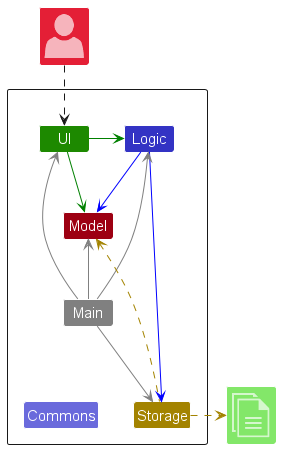
The Architecture Diagram given above explains the high-level design of the App.
Given below is a quick overview of main components and how they interact with each other.
Main components of the architecture
Main (consisting of classes Main and MainApp) is in charge of the app launch and shut down.
- At app launch, it initializes the other components in the correct sequence, and connects them up with each other.
- At shut down, it shuts down the other components and invokes cleanup methods where necessary.
The bulk of the app’s work is done by the following four components:
-
UI: The UI of the App. -
Logic: The command executor. -
Model: Holds the data of the App in memory. -
Storage: Reads data from, and writes data to, the hard disk.
Commons represents a collection of classes used by multiple other components.
How the architecture components interact with each other
The Sequence Diagram below shows how the components interact with each other for the scenario where the user issues the command delete 1.
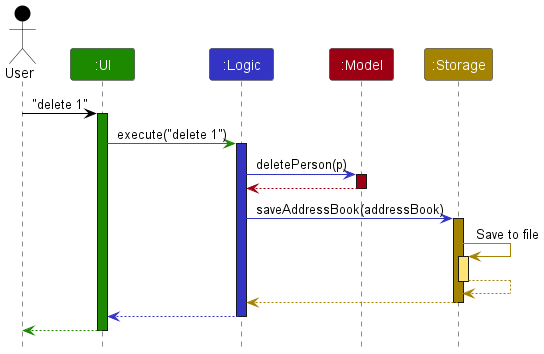
Each of the four main components (also shown in the diagram above),
- defines its API in an
interfacewith the same name as the Component. - implements its functionality using a concrete
{Component Name}Managerclass (which follows the corresponding APIinterfacementioned in the previous point.
For example, the Logic component defines its API in the Logic.java interface and implements its functionality using the LogicManager.java class which follows the Logic interface. Other components interact with a given component through its interface rather than the concrete class (reason: to prevent outside component’s being coupled to the implementation of a component), as illustrated in the (partial) class diagram below.
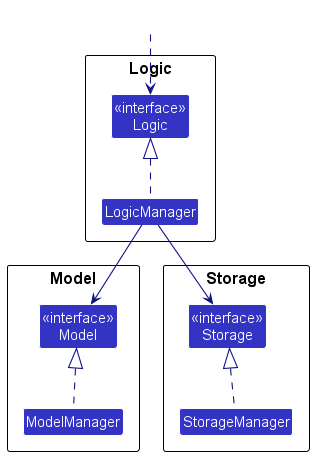
The sections below give more details of each component.
UI component
The API of this component is specified in Ui.java
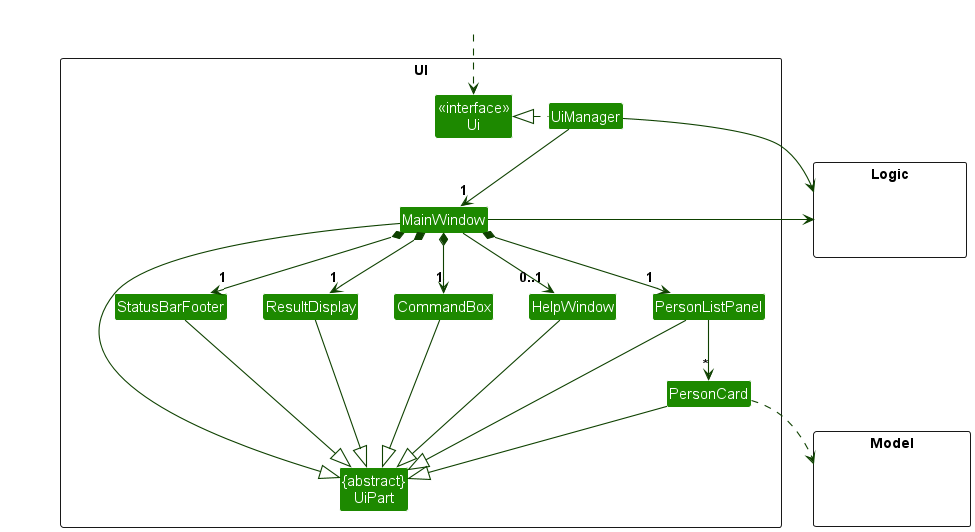
The UI consists of a MainWindow that is made up of parts e.g.CommandBox, ResultDisplay, PersonListPanel, StatusBarFooter etc. All these, including the MainWindow, inherit from the abstract UiPart class which captures the commonalities between classes that represent parts of the visible GUI.
The UI component uses the JavaFx UI framework. The layout of these UI parts are defined in matching .fxml files that are in the src/main/resources/view folder. For example, the layout of the MainWindow is specified in MainWindow.fxml
The UI component,
- executes user commands using the
Logiccomponent. - listens for changes to
Modeldata so that the UI can be updated with the modified data. - keeps a reference to the
Logiccomponent, because theUIrelies on theLogicto execute commands. - depends on some classes in the
Modelcomponent, as it displaysPersonobject residing in theModel.
Logic component
API : Logic.java
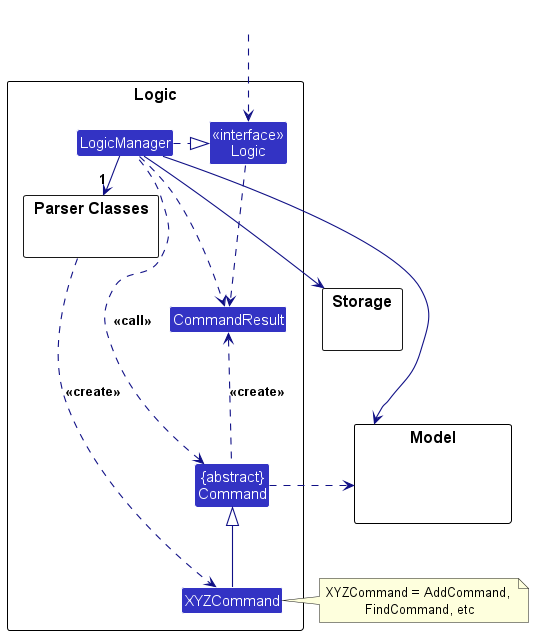
Here’s a (partial) class diagram of the Logic component:
The sequence diagram below illustrates the interactions within the Logic component, taking execute("delete 1") API call as an example.
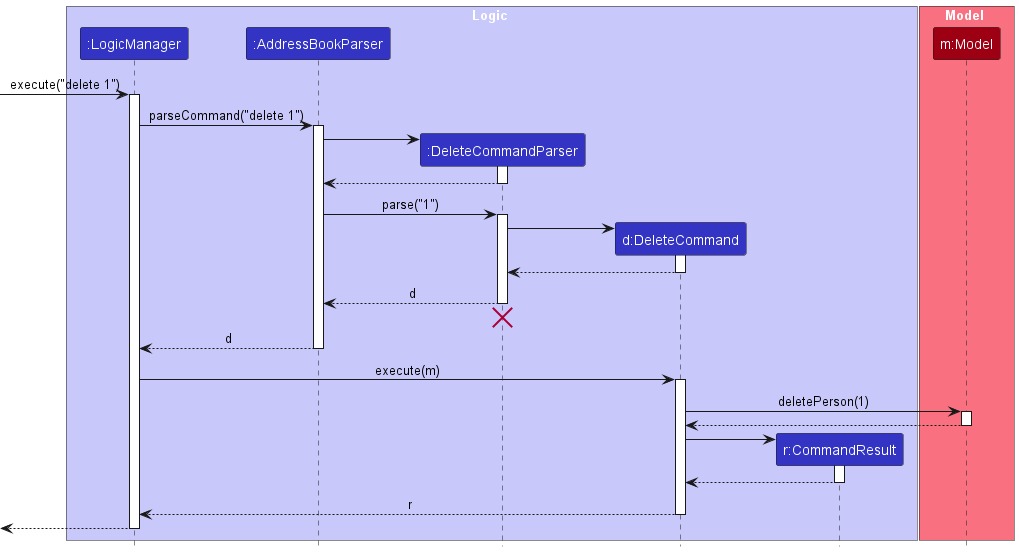
 Note: The lifeline for
 DeleteCommandParser should end at the destroy marker (X) but due to a limitation of PlantUML, the lifeline continues till the end of diagram.
How the Logic component works:
- When
Logicis called upon to execute a command, it is passed to anAddressBookParserobject which in turn creates a parser that matches the command (e.g.,DeleteCommandParser) and uses it to parse the command. - This results in a
Commandobject (more precisely, an object of one of its subclasses e.g.,DeleteCommand) which is executed by theLogicManager. - The command can communicate with the
Modelwhen it is executed (e.g. to delete a person).
Note that although this is shown as a single step in the diagram above (for simplicity), in the code it can take several interactions (between the command object and theModel) to achieve. - The result of the command execution is encapsulated as a
CommandResultobject which is returned back fromLogic.
Here are the other classes in Logic (omitted from the class diagram above) that are used for parsing a user command:
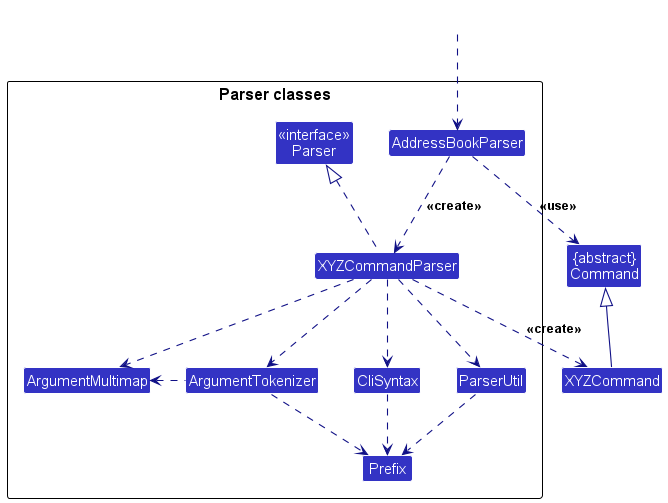
How the parsing works:
- When called upon to parse a user command, the
AddressBookParserclass creates anXYZCommandParser(XYZis a placeholder for the specific command name e.g.,AddCommandParser) which uses the other classes shown above to parse the user command and create aXYZCommandobject (e.g.,AddCommand) which theAddressBookParserreturns back as aCommandobject. - All
XYZCommandParserclasses (e.g.,AddCommandParser,DeleteCommandParser, …) inherit from theParserinterface so that they can be treated similarly where possible e.g, during testing.
Model component
API : Model.java
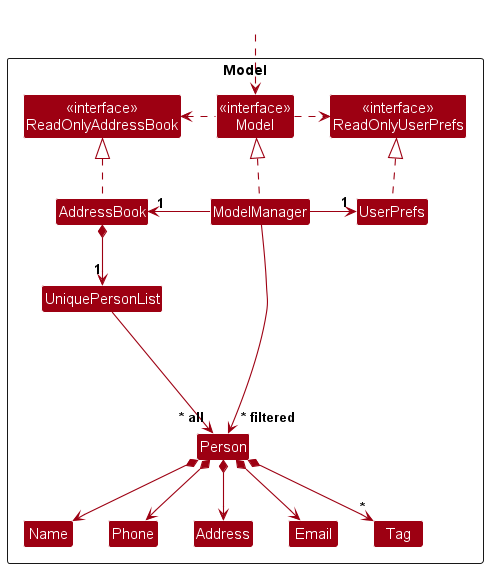
The Model component,
- stores the address book data i.e., all
Personobjects (which are contained in aUniquePersonListobject). - stores the currently ‘selected’
Personobjects (e.g., results of a search query) as a separate filtered list which is exposed to outsiders as an unmodifiableObservableList<Person>that can be ‘observed’ e.g. the UI can be bound to this list so that the UI automatically updates when the data in the list change. - stores a
UserPrefobject that represents the user’s preferences. This is exposed to the outside as aReadOnlyUserPrefobjects. - does not depend on any of the other three components (as the
Modelrepresents data entities of the domain, they should make sense on their own without depending on other components)
Note: An alternative (arguably, a more OOP) model is given below. It has a Tag list in the AddressBook, which Person references. This allows AddressBook to only require one Tag object per unique tag, instead of each Person needing their own Tag objects.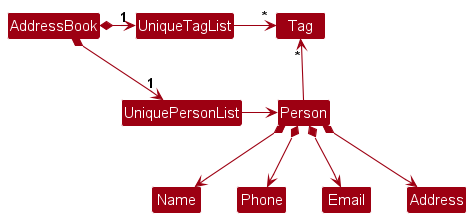
Storage component
API : Storage.java
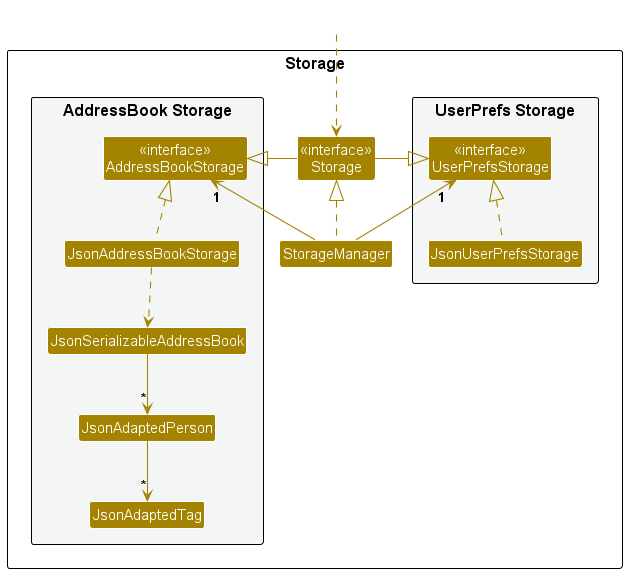
The Storage component,
- can save both address book data and user preference data in JSON format, and read them back into corresponding objects.
- inherits from both
AddressBookStorageandUserPrefStorage, which means it can be treated as either one (if only the functionality of only one is needed). - depends on some classes in the
Modelcomponent (because theStoragecomponent’s job is to save/retrieve objects that belong to theModel)
Common classes
Classes used by multiple components are in the seedu.address.commons package.
Implementation
This section describes some noteworthy details on how certain features are implemented.
Edit command
The edit family uses subcommand dispatch. To keep the diagrams readable, the flow is split into two smaller sequence diagrams using edit student 1 p/98765432 as the representative example.
The two class diagrams below split the edit feature into its command hierarchy and parser-dispatch structure. This keeps the overview readable while still generalizing the shared pattern across edit subcommands.
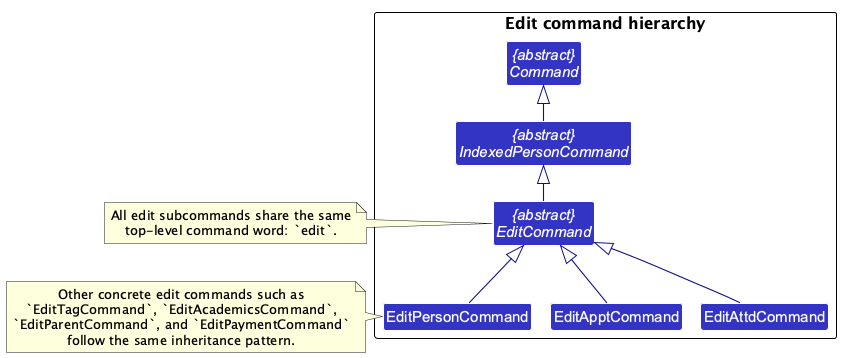
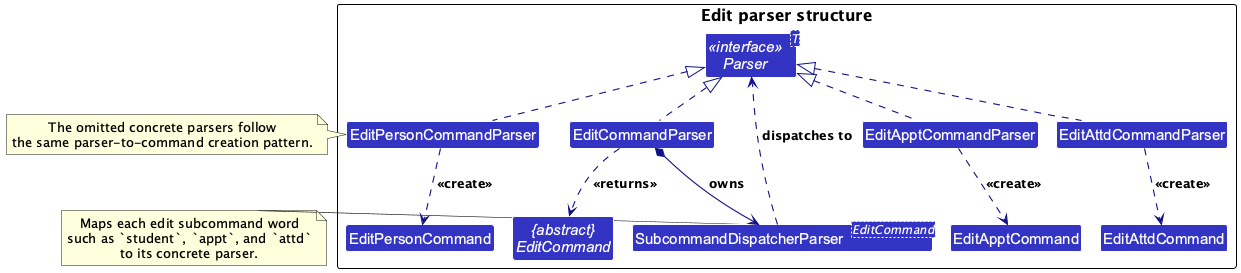
The first diagram shows how AddressBookParser routes the input to EditCommandParser, which then delegates to the concrete subcommand parser.
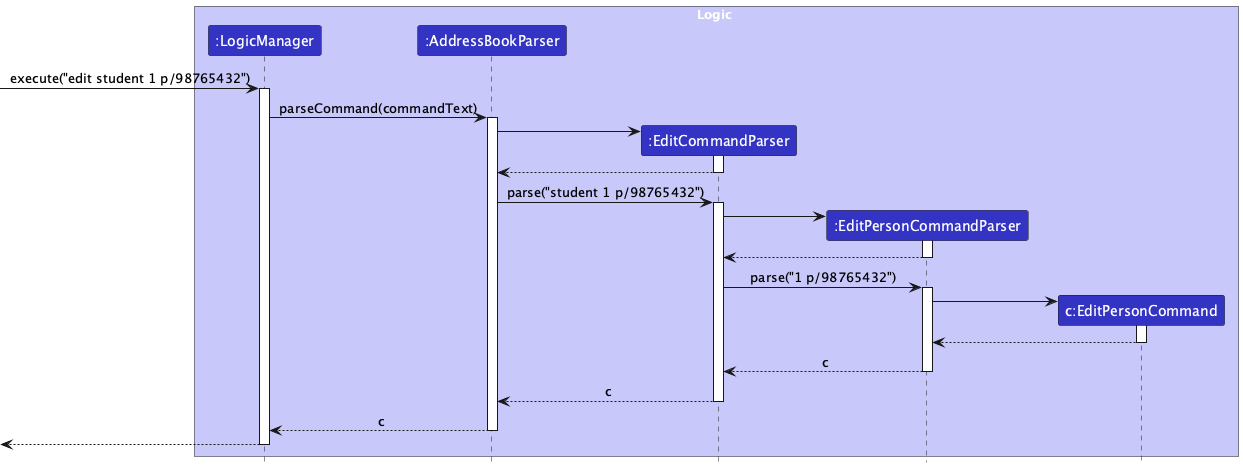
The second diagram shows the successful execution path after parsing. Error paths such as invalid indices and duplicate students are omitted to keep the diagram compact.
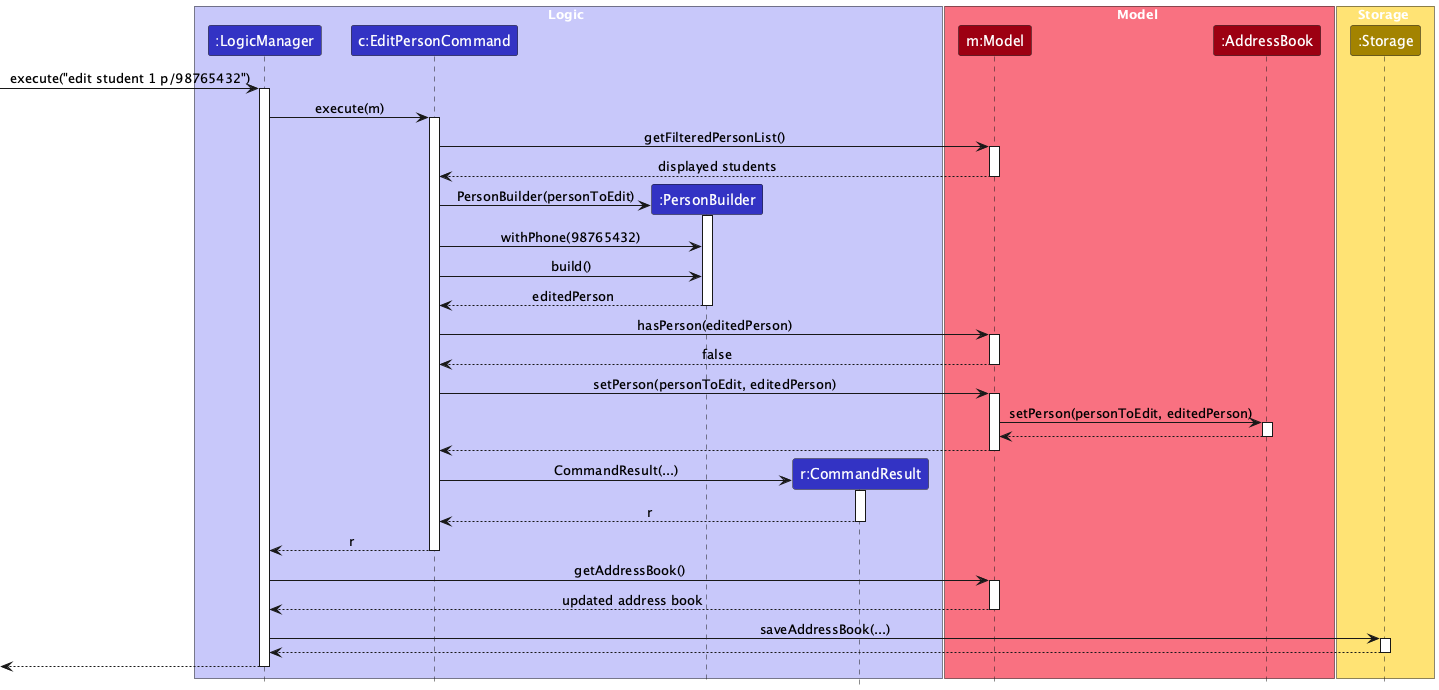
How the edit command works:
-
AddressBookParserrecognizeseditas the command word and forwards the remaining input toEditCommandParser. -
EditCommandParserdispatches by subcommand name (student,appt,attd,payment, etc.) and invokes the matching concrete parser. - The concrete parser validates the index and prefixed arguments, then constructs the corresponding
Edit...Command. - During execution, the command resolves the target student from the currently displayed list, builds the edited
Person, and checks any command-specific constraints. - The command updates the
Model, which replaces the targetPersonin theAddressBookwhile preserving the active filter. -
LogicManagerdetects that the address book changed and persists the updated state throughStorage.
Find command
The find family uses subcommand dispatch similar to edit. To keep the diagrams readable, the flow is split into smaller diagrams using find tag t/JC as the representative example.
The class diagram below shows the find command hierarchy. All concrete find commands share the same top-level command word find, while each subcommand encapsulates its own filtering logic.
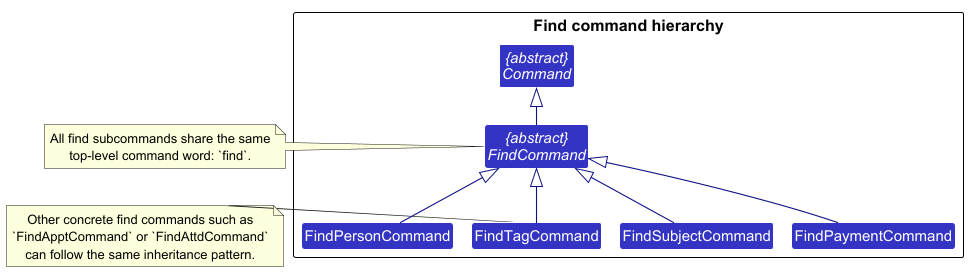
The following diagram shows the parser structure for find. AddressBookParser identifies find as the command word and forwards the remaining input to FindCommandParser, which uses a dispatcher to route to the appropriate subcommand parser.
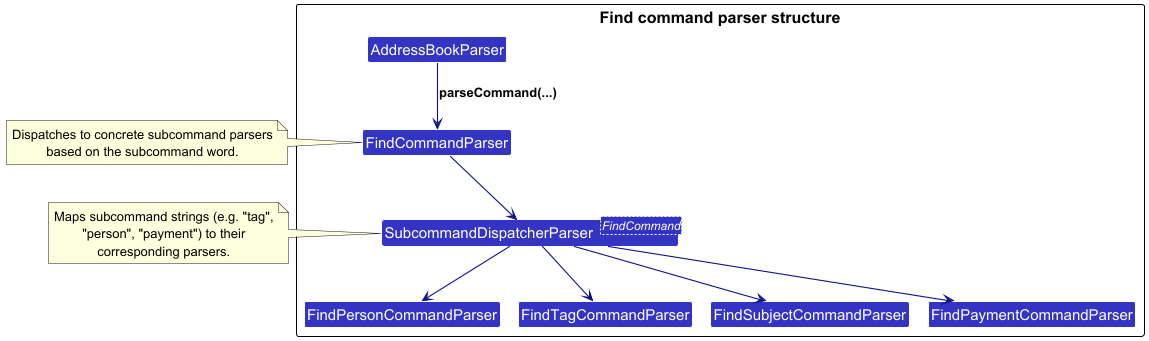
The next diagram illustrates how parsing is performed. FindCommandParser delegates to the appropriate concrete parser (e.g., FindTagCommandParser) based on the subcommand.
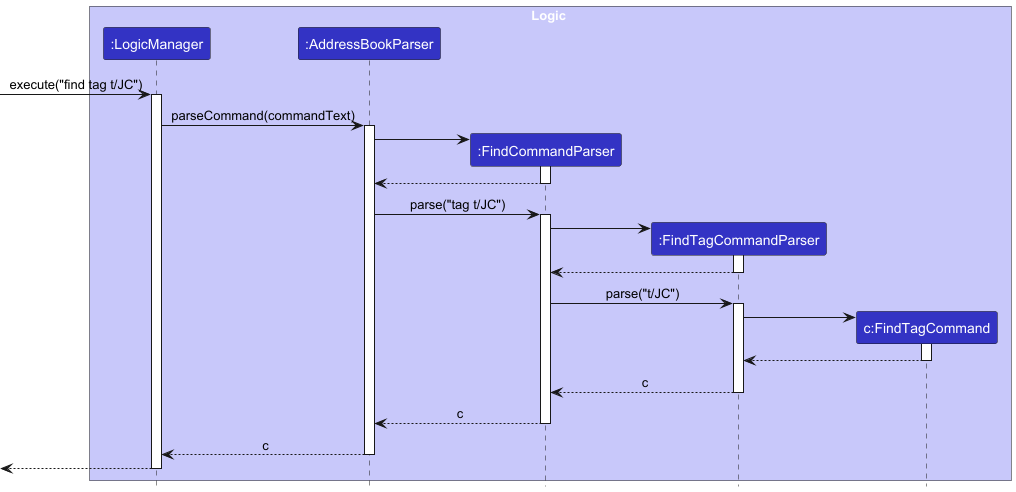
The final diagram shows the successful execution path after parsing. Error paths such as invalid formats or missing prefixes are omitted to keep the diagram compact.
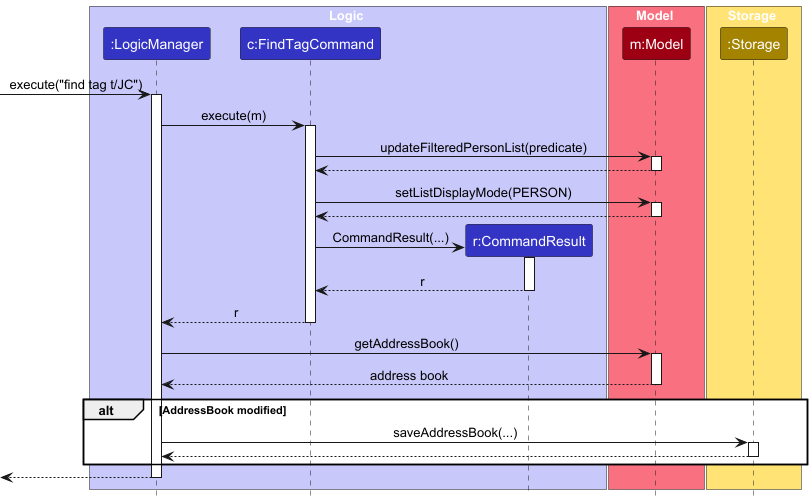
How the find command works:
-
AddressBookParserrecognizesfindas the command word and forwards the remaining input toFindCommandParser. -
FindCommandParseruses a dispatcher to route the input by subcommand name (person,tag,subject,payment, etc.) to the appropriate concrete parser. - The concrete parser validates the input arguments and constructs the corresponding
Find...Commandwith an appropriate predicate. - During execution, the command applies the predicate to the
ModelusingupdateFilteredPersonList(...), which updates the currently displayed list. - The command also updates the list display mode (e.g.,
PERSON) to ensure the UI reflects the correct view. -
LogicManagerchecks whether the underlyingAddressBookhas changed. Sincefindonly modifies transient model state (filtered list and display mode), no changes are detected in theAddressBook, and the storage step is therefore skipped.
View appointments command
The viewappt command is simpler than edit, so a single sequence diagram is enough. The example below uses viewappt d/2026-02-13.

How the viewappt command works:
-
AddressBookParserrecognizesviewapptand delegates the arguments toViewApptCommandParser. -
ViewApptCommandParserparses the optionald/DATEvalue. If the date is omitted, it uses the current local date instead. -
ViewApptCommandconstructs anAppointmentInWeekPredicate, which computes the Monday-Sunday week containing the target date. - During execution, the command updates the filtered person list using that predicate so that only students with appointments in the target week remain visible.
- The command switches the
Modeldisplay mode toAPPOINTMENT, allowing the UI to show appointment details for the filtered students. - The command returns a
CommandResultcontaining the number of matching appointments and the computed week range. - Unlike
edit,viewapptdoes not modify the address book, soLogicManagerdoes not save any data to storage after execution.
Subject-related commands
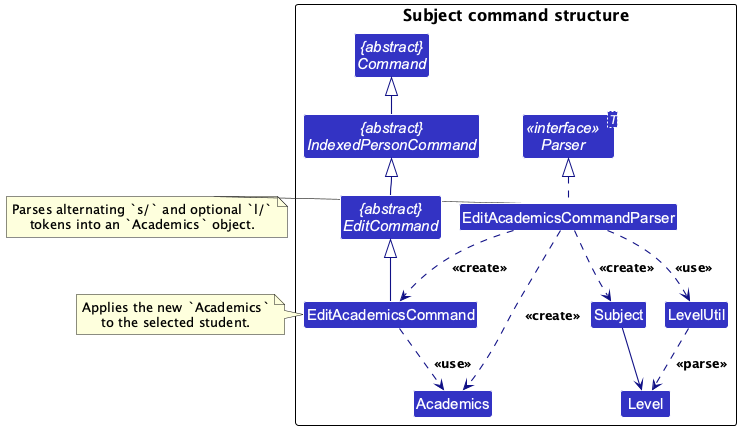
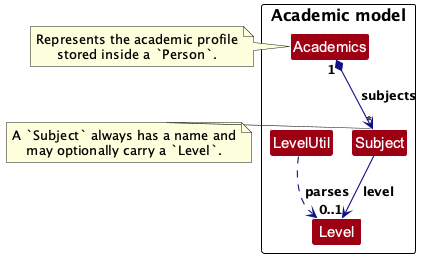
The subject-related feature is centered on edit acad, which parses subject and level tokens into an academic profile and assigns that profile to a student.
The first class diagram shows the command and parser side of the feature.
The second class diagram shows the academic model objects used by that command.
How the subject-related feature works:
-
EditAcademicsCommandParserreadss/subject tokens and optionall/level tokens fromedit acad. - The parser validates subject names, enforces that a level must follow a subject, and rejects duplicate subject names.
- The parsed subjects are wrapped in an
Academicsobject. -
EditAcademicsCommandapplies thatAcademicsobject to the selected student by rebuilding thePersonwith updated academics. - Each
Subjectstores a mandatory name and an optionalLevel, whileAcademicsstores the set of subjects for that student.
Payment and billing commands
The payment and billing feature covers two related workflows:
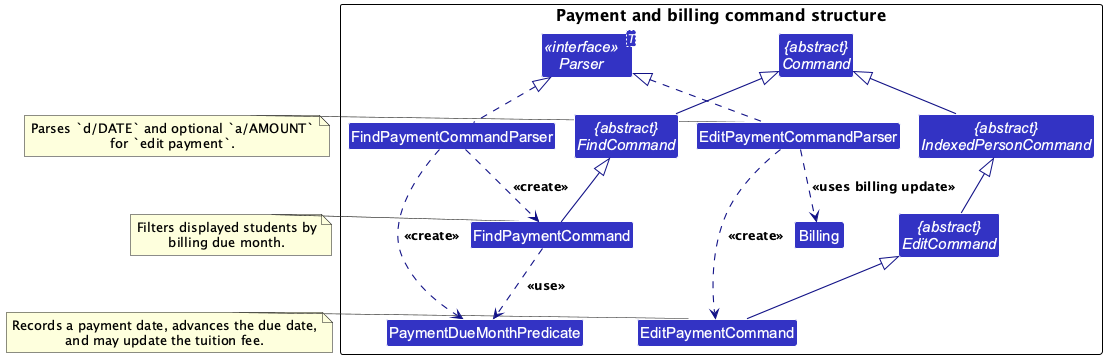
edit payment, which records a payment and updates billing data, and find payment, which filters students by billing due month.
The first class diagram shows the command and parser structure for these workflows.
The second class diagram shows the billing model objects used by those commands.
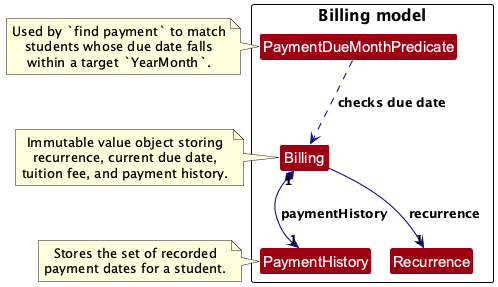
How the payment and billing feature works:
-
EditPaymentCommandParserparses a requiredd/DATEand an optionala/AMOUNTfromedit payment. -
EditPaymentCommandupdates the selected student’sBillingby recording the payment date, advancing the next due date, and optionally changing the tuition fee. -
FindPaymentCommandParserparsesd/YYYY-MMand creates aPaymentDueMonthPredicate. -
FindPaymentCommandapplies that predicate to the displayed list so only students with matching billing due months remain visible. -
Billingstores the recurrence schedule, current due date, tuition fee, andPaymentHistory, whilePaymentHistorystores the set of recorded paid dates.
[Proposed] Undo/redo feature
Proposed Implementation
The proposed undo/redo mechanism is facilitated by VersionedAddressBook. It extends AddressBook with an undo/redo history, stored internally as an addressBookStateList and currentStatePointer. Additionally, it implements the following operations:
-
VersionedAddressBook#commit()— Saves the current address book state in its history. -
VersionedAddressBook#undo()— Restores the previous address book state from its history. -
VersionedAddressBook#redo()— Restores a previously undone address book state from its history.
These operations are exposed in the Model interface as Model#commitAddressBook(), Model#undoAddressBook() and Model#redoAddressBook() respectively.
Given below is an example usage scenario and how the undo/redo mechanism behaves at each step.
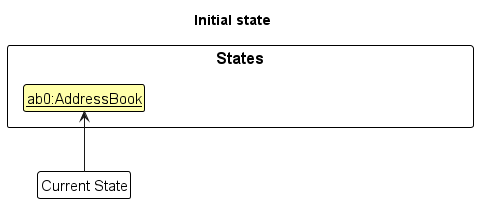
Step 1. The user launches the application for the first time. The VersionedAddressBook will be initialized with the initial address book state, and the currentStatePointer pointing to that single address book state.
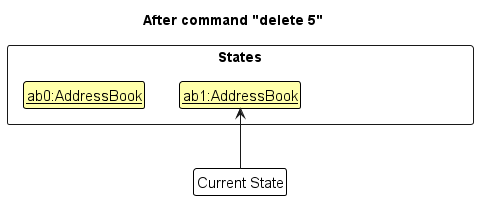
Step 2. The user executes delete 5 command to delete the 5th person in the address book. The delete command calls Model#commitAddressBook(), causing the modified state of the address book after the delete 5 command executes to be saved in the addressBookStateList, and the currentStatePointer is shifted to the newly inserted address book state.
Step 3. The user executes add n/David … to add a new person. The add command also calls Model#commitAddressBook(), causing another modified address book state to be saved into the addressBookStateList.
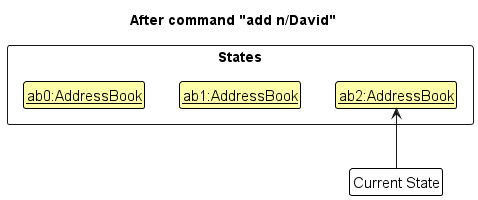
Note: If a command fails its execution, it will not call Model#commitAddressBook(), so the address book state will not be saved into the addressBookStateList.
Step 4. The user now decides that adding the person was a mistake, and decides to undo that action by executing the undo command. The undo command will call Model#undoAddressBook(), which will shift the currentStatePointer once to the left, pointing it to the previous address book state, and restores the address book to that state.
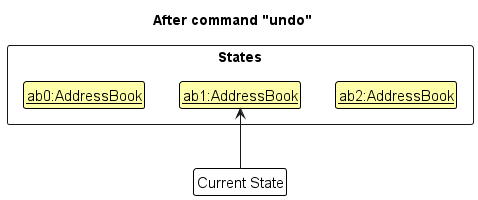
Note: If the currentStatePointer is at index 0, pointing to the initial AddressBook state, then there are no previous AddressBook states to restore. The undo command uses Model#canUndoAddressBook() to check if this is the case. If so, it will return an error to the user rather
than attempting to perform the undo.
The following sequence diagram shows how an undo operation goes through the Logic component:
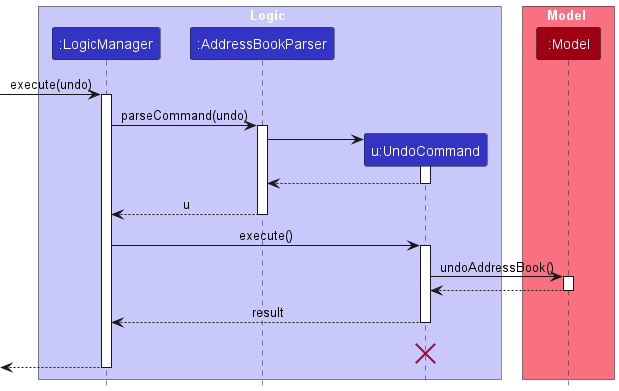
Note: The lifeline for UndoCommand should end at the destroy marker (X) but due to a limitation of PlantUML, the lifeline reaches the end of diagram.
Similarly, how an undo operation goes through the Model component is shown below:
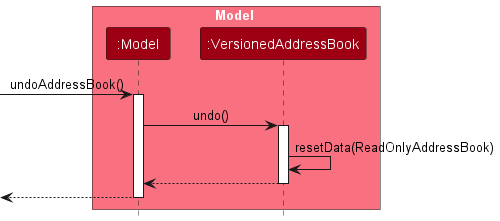
The redo command does the opposite — it calls Model#redoAddressBook(), which shifts the currentStatePointer once to the right, pointing to the previously undone state, and restores the address book to that state.
Note: If the currentStatePointer is at index addressBookStateList.size() - 1, pointing to the latest address book state, then there are no undone AddressBook states to restore. The redo command uses Model#canRedoAddressBook() to check if this is the case. If so, it will return an error to the user rather than attempting to perform the redo.
Step 5. The user then decides to execute the command list. Commands that do not modify the address book, such as list, will usually not call Model#commitAddressBook(), Model#undoAddressBook() or Model#redoAddressBook(). Thus, the addressBookStateList remains unchanged.
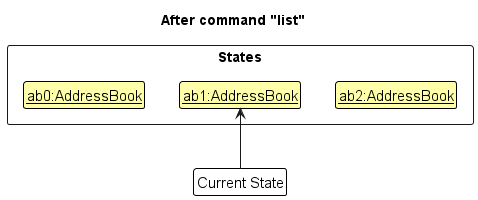
Step 6. The user executes clear, which calls Model#commitAddressBook(). Since the currentStatePointer is not pointing at the end of the addressBookStateList, all address book states after the currentStatePointer will be purged. Reason: It no longer makes sense to redo the add n/David … command. This is the behavior that most modern desktop applications follow.

The following activity diagram summarizes what happens when a user executes a new command:
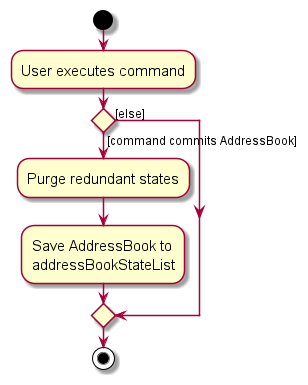
Design considerations:
Aspect: How undo & redo executes:
-
Alternative 1 (current choice): Saves the entire address book.
- Pros: Easy to implement.
- Cons: May have performance issues in terms of memory usage.
-
Alternative 2: Individual command knows how to undo/redo by
itself.
- Pros: Will use less memory (e.g. for
delete, just save the person being deleted). - Cons: We must ensure that the implementation of each individual command are correct.
- Pros: Will use less memory (e.g. for
{more aspects and alternatives to be added}
[Proposed] Data archiving
{Explain here how the data archiving feature will be implemented}
Documentation, logging, testing, configuration, dev-ops
Appendix: Requirements
Product scope
Target user profile:
- full-time freelance private tutors managing multiple students
- prefer desktop apps over other types
- can type fast and are comfortable with CLI applications
- want to manage student contacts, appointments, and payments in one place
- need a quick way to track lessons, attendance, and tuition payments
Value proposition: TutorFlow allows freelance tutors to manage their students, appointments, attendance, and tuition payments quickly through a centralized CLI-based platform, reducing scheduling conflicts and helping tutors track their tutoring activities efficiently.
User stories
Priorities: High (must have) - * * *, Medium (nice to have) - * *, Low (unlikely to have) - *
| Priority | As a … | I want to … | So that I can… | |
|---|---|---|---|---|
* * * |
tutor | add a new contact to the address book | track which tutees I currently teach | |
* * * |
new user | delete a contact | remove contacts that I no longer need | |
* * * |
tutor | add appointment details to a contact | track lesson schedules with students | |
* * * |
freelance tutor | view what appointments I have for the week | plan my tutoring schedule appropriately | |
* * * |
tutor | track whether a client has paid tuition fees for the month | keep track of outstanding payments | |
* * |
tutor | view the payment dates | know when my clients have paid for lessons | |
* * |
tutor | add and view student attendance | evaluate lesson attendance and consistency | |
* * |
tutor | store the name of the tutee alongside the parent’s name | easily identify the student and their guardian | |
* |
tutor | filter students by subject tags | quickly see which students take which subjects | |
* |
tutor with multiple students | tag students based on subject or level | organize students for possible group tuition |
{More to be added}
Use cases
(For all use cases below, the System is TutorFlow and the Actor is the Tutor, unless specified otherwise)
Use case: View all students
MSS
- Tutor requests to view all students.
- TutorFlow shows all the students available in the system.
Use case ends
Extensions
- 2a. There are no students available in the system
- 2a1. TutorFlow informs the tutor that there are no students recorded.
Use case ends.
Use case: View appointment details for the week
MSS
- Tutor requests to view appointments for a given week.
- TutorFlow retrieves the appointments for the target week.
- TutorFlow displays the list of appointments and their details.
Use case ends.
Extensions
- 1a. Tutor provides an invalid request.
- 1a1. TutorFlow indicates that the request is invalid and asks for a valid date.
- 1a2. Steps 1 to 1a2 are repeated until a valid request is provided.
-
Use case resumes at step 2
- 4a. No appointments exist for the target week.
- 4a1. TutorFlow indicates that there are no appointments.
- Use case ends.
Use case: Add appointment details for a student
MSS
- Tutor View all students.
- Tutor selects a student.
- Tutor enters appointment details for the student.
- TutorFlow records the appointment details and displays confirmation.
Use case ends.
Extensions
- 4a. The tutor enters invalid appointment details.
- 4a1. TutorFlow requests for correct data.
- 4a2. Step 4-4a2 are repeated until the tutor enters valid appointment details.
- Use case resumes at step 5.
Use case: Record student attendance
MSS
- Tutor requests to view all students
- TutorFlow shows all students
- Tutor selects a student
- Tutor records that the student has attended today’s lesson
- TutorFlow updates the student’s attendance and displays confirmation.
Use case ends.
Extensions
- 3a. Tutor records that the student has attended a previous lesson
-
Use case resumes from step 5.
- 4a. TutorFlow detects an error in the entered data.
- 4a1. TutorFlow requests for the correct data.
- 4a2. Tutor enters new data.
- Steps 4a1-4a2 are repeated until the data entered are correct.
- Use case resumes from step 5.
Use case: View student attendance for the week
MSS
- Tutor requests to view all students
- TutorFlow shows all students
- Tutor selects a student
- Tutor requests to view the student’s attendance for the current week
- TutorFlow shows the student’s attendance
Use case ends.
** Extensions**
- 3a. Tutor requests to view the student’s attendance for another week
-
Use case resumes from step 5.
- 4a. TutorFlow detects an error in the entered data.
- 4a1. TutorFlow requests for the correct data.
- 4a2. Tutor enters new data.
- Steps 4a1-4a2 are repeated until the data entered are correct.
- Use case resumes from step 5.
Use case: Record tuition payment for a student
MSS
- Tutor requests to list students.
- TutorFlow shows the list of students.
- Tutor selects a student.
- Tutor records that the student has paid tuition for the month.
- TutorFlow updates the student’s payment status and displays confirmation.
Use case ends.
Extensions
-
2a. The student list is empty.
- 2a1. TutorFlow informs the tutor that there are no students recorded.
-
Use case ends.
-
4a. The tutor enters invalid payment information.
- 4a1. TutorFlow shows an error message.
- 4a2. Tutor re-enters the payment information.
- Steps 4a1 to 4a2 are repeated until the tutor enters valid payment details.
-
Use case resumes at step 5.
Use case: Add Parent Details with Student Contact
MSS
- Tutor requests to add a parent together with a student contact.
- Tutorflow requests for the parent and contact details.
- Tutor provides parent name, student name, phone number, email and address.
- Tutorflow validates the provided details.
- Tutorflow checks for any duplicate entries.
- Tutorflow stores the new parent and student contact information.
- Tutor confirms that the parent and student contact has been added.
Use case ends.
Extensions
-
4a. Parent name is empty or invalid
- 4a1. Tutorflow detects an error in the entered data.
- 4a2. Tutorflow requests the tutor to provide valid details.
-
Use case resumes from step 3.
-
4b. Extremely long or invalid input detected
- 4b1. Tutorflow rejects the input and informs tutor that the input is invalid.
-
Use case ends.
-
5a. Student name is empty or invalid
- 5a1. Tutorflow informs the tutor that the parent-student pair already exists.
-
Use case ends.
-
5b. Duplicate field detected
- 5b1. Tutorflow detects duplicate fields in the entered data.
- 5b2. Tutorflow requests the tutor to provide the details again.
-
Use case resumes from step 3.
{More to be added}
Non-Functional Requirements
- Application should work on any mainstream OS as long as it has Java
17or above installed. - Should be able to hold up to 1000 persons without a noticeable sluggishness in performance for typical usage.
- A user with above average typing speed for regular English text (i.e. not code, not system admin commands) should be able to accomplish most of the tasks faster using commands than using the mouse.
- Application should respond within one second.
- Expected to adhere to a schedule that delivers a feature set every one week.
- Not required to handle communication between Tutors and Students.
- Not required to handle payments between Tutors and Students.
{More to be added}
Glossary
- Mainstream OS: Windows, Linux, Unix, MacOS
- Tutor: A freelance private tutor who uses Tutorflow to manage their students and schedules
- Student: A person who is being taught by the tutor
- Tuition Fee: Amount of money that is owed or paid by a student to the tutor for the lessons
- Appointment: A scheduled tutoring session between a tutor and student, including date, time and subject
- Attendance: A record of wheter a student was absent or present for the scheduled lesson
- Subject Tag: A label attached to a student’s contact details indicating the academic subject being taught
- Level Tag: A label attached to a student’s contact details indicating the student’s academic level (e.g., Primary 6, Secondary 3)
- Parent-Student Pair: A linked relationship between a parent contact and a child’s entry
- CLI (Command Line Interface): A text-based interface where the user interacts with the application by typing commands
- GUI (Graphical User Interface): A visual interface that allows interaction through graphical elements such as windows and buttons
- API (Application Programming Interface): A defined set of methods and contracts through which software components communicate with each other
- JSON: Javascript Object Notation, a data format and is used to persist data to disk
- ObservableList: A list data structure that notifies listeners (e.g. the UI) automatically when its contents changes
Appendix: Instructions for manual testing
Given below are instructions to test the app manually.
Note: These instructions only provide a starting point for testers to work on;
testers are expected to do more exploratory testing.
Launch and shutdown
-
Initial launch
-
Download the jar file and copy into an empty folder
-
Double-click the jar file Expected: Shows the GUI with a set of sample contacts. The window size may not be optimum.
-
-
Saving window preferences
-
Resize the window to an optimum size. Move the window to a different location. Close the window.
-
Re-launch the app by double-clicking the jar file.
Expected: The most recent window size and location is retained.
-
-
{ more test cases … }
Deleting a person
-
Deleting a person while all persons are being shown
-
Prerequisites: List all persons using the
listcommand. Multiple persons in the list. -
Test case:
delete 1
Expected: First contact is deleted from the list. Details of the deleted contact shown in the status message. Timestamp in the status bar is updated. -
Test case:
delete 0
Expected: No person is deleted. Error details shown in the status message. Status bar remains the same. -
Other incorrect delete commands to try:
delete,delete x,...(where x is larger than the list size)
Expected: Similar to previous.
-
-
{ more test cases … }
Saving data
-
Dealing with missing/corrupted data files
- {explain how to simulate a missing/corrupted file, and the expected behavior}
-
{ more test cases … }